Shopify Product Variants: Best Practices
How to set up and manage Shopify product variants for maximum conversion. Naming, pricing, inventory, and the UX decisions that help customers pick the…

Mark Cijo
Founder, GOSH Digital
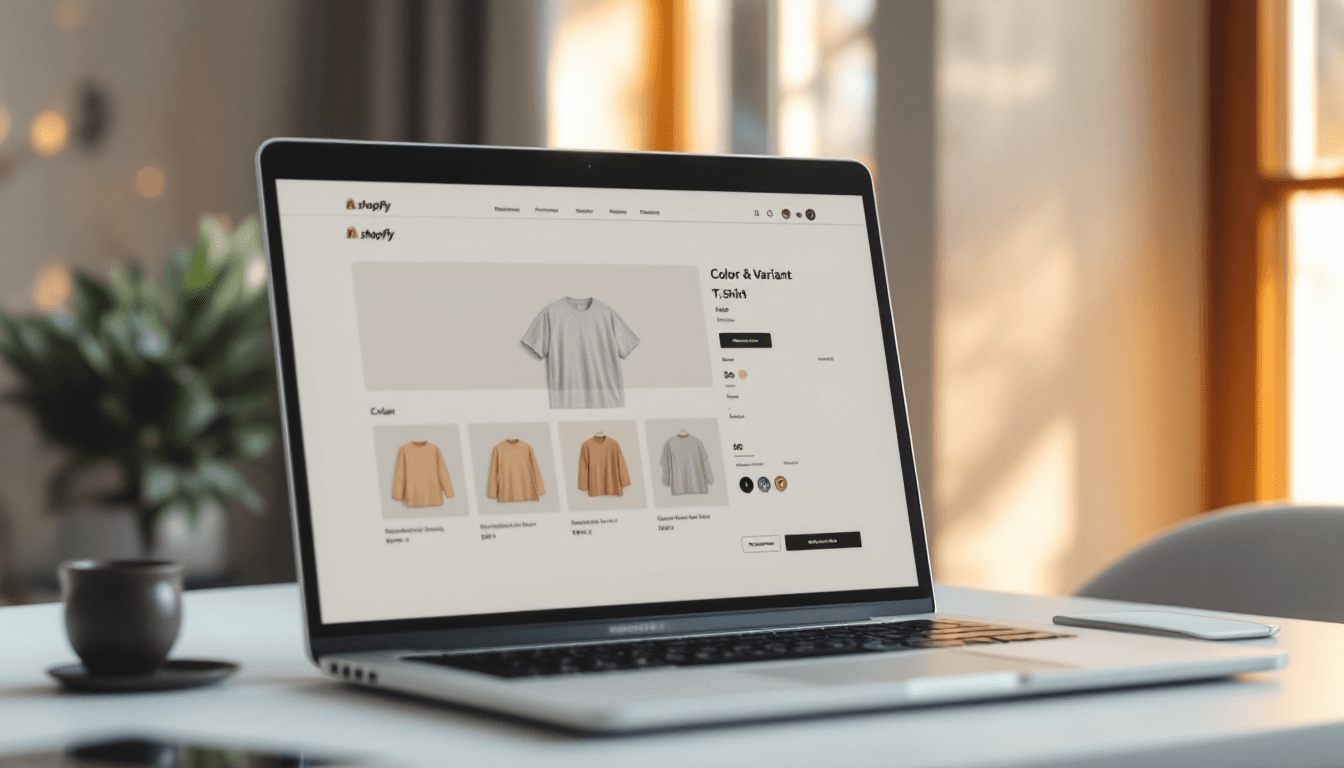
Shopify allows up to 100 variants per product across up to 3 option categories. That sounds generous until you have a t-shirt in 8 colors and 6 sizes (48 variants) and realize you've used nearly half your limit on one product.
Variants are how customers choose their specific version of your product: size, color, material, flavor, bundle size, or any other attribute that differentiates one version from another. Get variants right and customers confidently select what they want. Get them wrong and they're confused, frustrated, or buying the wrong thing (which becomes a return).
Let me walk you through the best practices that actually matter.
Understanding the Limits
Shopify allows:
- 3 option types per product (e.g., Size, Color, Material)
- Up to 100 variants per product (the combination of all options)
- Each variant has its own SKU, price, inventory, barcode, and image
The 3-option limit is the one most brands bump into. If you need a fourth option (say, Size + Color + Material + Monogram), you'll need a workaround: either combine two options into one (like "Blue - Cotton" as a single option value) or use a product customizer app.
The 100-variant limit is the mathematical constraint. 5 sizes times 10 colors times 3 materials = 150 variants, which exceeds the limit. You'd need to split this into multiple products or reduce option combinations.
Naming Your Options
The option name ("Size," "Color," etc.) appears on your product page as a label. Make it clear and customer-friendly.
Good option names:
- Size (not "Sizing" or "Dimension" or "Product Size")
- Color (not "Colour Option" or "Color Choice" or "Shade")
- Flavor (not "Taste" or "Flavor Profile")
- Pack Size (not "Quantity" or "Bundle" or "Pack")
Option value naming:
- Keep it consistent across products. If one product uses "Small, Medium, Large" and another uses "S, M, L," customers get confused.
- Use descriptive values. "Blue" is fine, but "Navy Blue" and "Sky Blue" are more helpful when you have multiple blues.
- Avoid abbreviations for anything that isn't universally understood. "SM" for Small is fine. "RGD" for Regular Grind is not.
Images Per Variant
This is one of the most impactful things you can do for conversion: show a different product image for each variant, especially for colors and patterns.
When a customer selects "Navy Blue," the product image should change to show the Navy Blue version. When they select "Forest Green," the image should change to Forest Green.
In Shopify: when editing a product, you can assign specific images to specific variants. Upload all your variant images, then in the variant editing section, select which image belongs to which variant.
If you sell a product in 8 colors and only show one color in the images, customers have to guess what the other colors look like. Guessing leads to wrong purchases. Wrong purchases lead to returns. Returns cost you money.
Minimum: one image per color variant. Ideally: 2-3 images per color (front, detail, lifestyle shot).
Pricing Variants
Not all variants need the same price. Common scenarios:
Size-based pricing. A 30-count bottle at $29, a 90-count bottle at $69. Different sizes, different prices. Set the price on each variant individually.
Material-based pricing. A cotton version at $45, a silk version at $89. Higher-quality materials justify different pricing.
Premium option pricing. A standard version at $50, a limited edition version at $75. The variant system lets you handle this within a single product listing.
When pricing variants differently, make sure the price updates visually on the product page when the customer selects a variant. Most Shopify themes do this automatically, but test it. If the price doesn't change when the customer selects a different size, they might be surprised at checkout.
Compare at Price per variant. You can also set variant-level Compare at Prices. This lets you put specific variants on sale (clearance on XS and XXL sizes, for example) while keeping other sizes at full price.
Inventory Management
Each variant has its own inventory count. This is essential for accurate stock management.
Enable inventory tracking. For every variant, check "Track quantity" in the variant settings. This prevents overselling.
Set "Continue selling when out of stock" carefully. If you turn this on, customers can buy variants that are at zero inventory. This is useful for made-to-order or pre-order products but dangerous for products you actually need in stock before shipping.
Low stock alerts. Use Shopify's notification settings to alert you when variant inventory drops below a threshold. Different variants sell at different rates — your size Medium in Black might sell 5x faster than size XXL in Yellow.
SKU naming convention. Use a consistent SKU format that encodes the variant information. Example: TSHIRT-BLK-M (product-color-size). This makes inventory management, warehouse operations, and reporting much cleaner.
Handling Out-of-Stock Variants
When a variant sells out, you have three options:
Option 1: Show it as "Sold Out." The variant appears in the selector but is grayed out or shows "Sold Out" when selected. This is the default Shopify behavior and it's usually the best choice. It tells the customer the product exists in that option and creates scarcity/urgency for other variants.
Option 2: Hide it completely. Remove the out-of-stock variant from the selector. This simplifies the customer's choice but hides the fact that the variant exists. You might miss back-in-stock notification opportunities.
Option 3: Allow back-in-stock notification signup. When a customer selects a sold-out variant, show a "Notify me when available" form instead of the "Add to Cart" button. This captures demand data and gives you a list to email when you restock. Apps like Back in Stock (by Klaviyo) handle this.
For most stores, Option 3 is the best approach. It acknowledges the product is out of stock, captures demand, and creates a built-in marketing list for restocks.
Variant Display and UX
Swatches vs. Dropdowns
For color options, use color swatches instead of a dropdown menu. Swatches show a small circle of each color, making it visually obvious what's available. Dropdowns require the customer to click and scan a list.
Most modern Shopify themes support color swatches natively. If yours doesn't, apps like Variant Image King or custom theme code can add them.
For size options, buttons (S, M, L, XL displayed as clickable boxes) work better than dropdowns. The customer can see all sizes at a glance and quickly identify what's available.
Rule of thumb: If there are fewer than 8 option values, use buttons or swatches. If there are 8+, a dropdown might be necessary to avoid taking up too much space.
Variant Selection on Collection Pages
Some themes allow variant selection directly on the collection page (without clicking into the product page). This is called "quick add" or "quick shop." The customer selects size and color on the collection card and adds to cart in one click.
This is a conversion booster for stores with simple variant structures (size + color). For complex products with multiple options, it can feel cramped.
Preselecting the Default Variant
When a customer lands on a product page, which variant is preselected? Shopify defaults to the first variant in your list.
Think about which variant should be the default:
- For size: "Medium" or your most popular size is often better than "XS" (which might be the first alphabetically)
- For color: your best-selling color or the color shown in your marketing materials
- For pack size: the mid-range option (the decoy effect puts the best value in the middle)
Reorder your variants in Shopify so the most popular or most representative one appears first.
When Variants Aren't the Right Solution
Variants are for options that share the same product concept. But sometimes what looks like a variant should actually be a separate product.
Separate products when:
- The options have dramatically different descriptions or features (a basic model vs. a pro model)
- Different options target different customer segments
- SEO benefits from separate product pages (each variant gets its own URL for search targeting)
- The images are so different that they'd look unrelated on the same product page
Use variants when:
- The core product is the same, just in different sizes/colors/configurations
- Customers compare options side by side (blue vs. red)
- Inventory and fulfillment is easier to manage as one product with variants
A common mistake: making every size of a supplement brands a variant of one product. If you sell a 30-count, 90-count, and 180-count, these could be variants. But if the 30-count is a starter pack with different branding and a lower price point targeting a different buyer, it might deserve its own product page.
Advanced: Metafields for Additional Variant Data
Shopify's metafields let you attach custom data to variants. This is useful for:
- Additional specifications (weight per variant, ingredients per flavor, dimensions per size)
- Custom swatch images (more detailed than a simple color circle)
- Variant-specific messaging ("Most Popular" badge on the best-selling variant)
Metafields require theme customization to display on the product page, but they unlock much richer variant experiences.
Related Reads
- Shopify Internationalization: Selling Globally
- Shopify Checkout Optimization That Lifts Revenue
- SEO for Shopify Product Pages: The Complete Guide
The Bottom Line
Variants seem simple — and they are at a basic level. But the details of naming, imaging, pricing, inventory management, and UX make the difference between a product page that converts and one that confuses.
Get the fundamentals right: one image per color variant, clear option names, smart default selections, and proper inventory tracking. Then optimize with swatches, back-in-stock notifications, and variant-specific pricing.
If you want help optimizing your Shopify product pages, variants, and overall store UX, book a call with our team. We'll audit your product setup and show you where the conversion opportunities are.

Written by Mark Cijo
Founder of GOSH Digital. Klaviyo Gold Partner. Helping eCommerce brands grow revenue through data-driven marketing.
Book a free strategy call →